How to Install WordPress Themes & Import Demo Content
Learn how to install WordPress themes from themeshop.net, import demo content, and set up your website easily. All themes are GPL licensed and do not require a purchase code.
BEFORE YOU START
WordPress installed on your domain
Admin access to WordPress dashboard
Theme ZIP file downloaded from your account
Stable internet connection
Note box: All our products are GPL licensed. No purchase code is required.
METHOD 1: INSTALL THEME VIA WORDPRESS DASHBOARD
Purpose
Main installation method (most users).
Method 1: Install Theme via WordPress Dashboard
Numbered steps:
Login to WordPress Admin
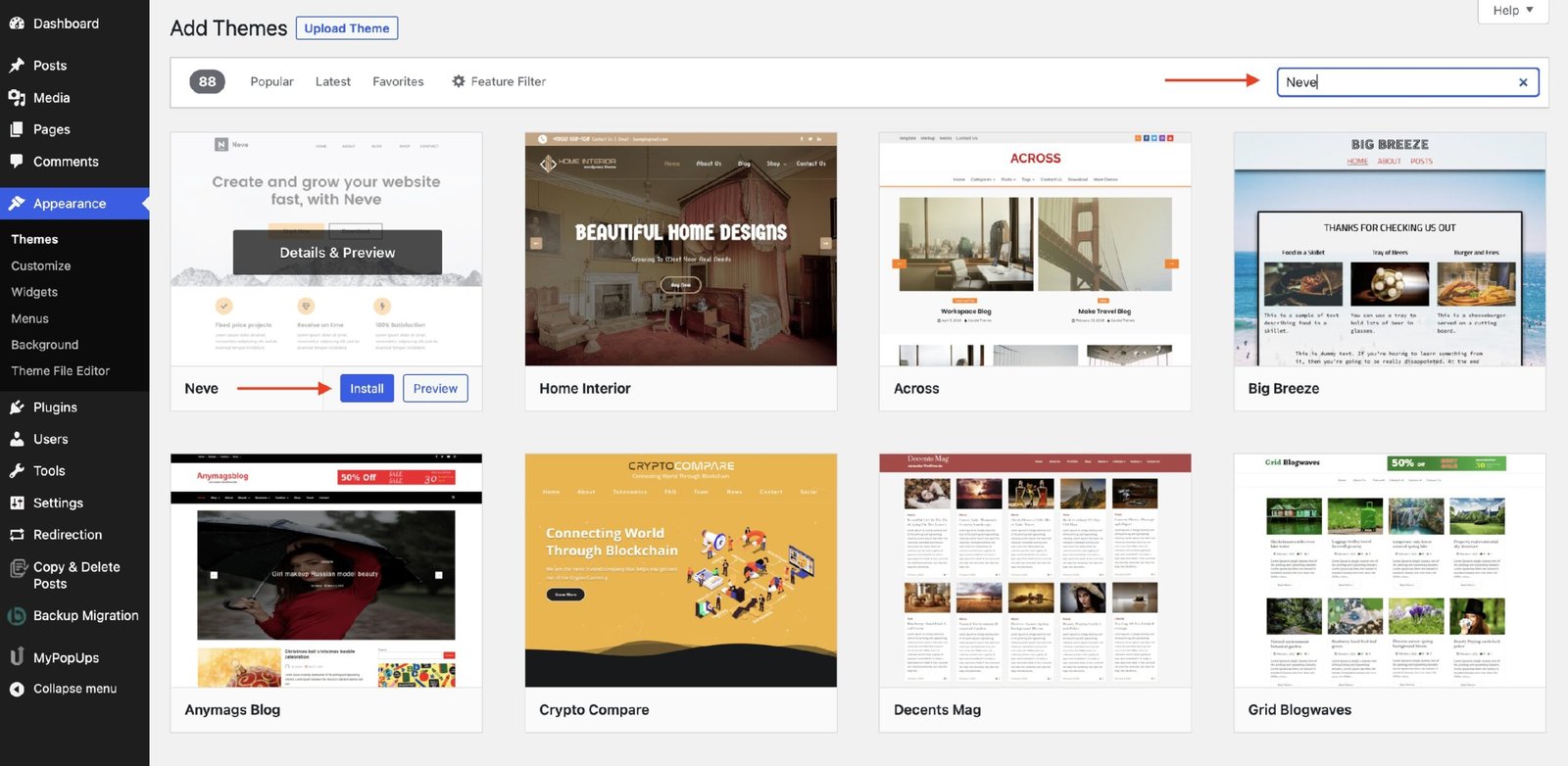
Go to Appearance → Themes
Click Add New → Upload Theme
Upload theme ZIP file
Click Install → Activate
Images (Step-based visuals)
INSTALL REQUIRED & RECOMMENDED PLUGINS
Explain why plugins are needed.
Content
Installing Required Plugins
Explain:
Page builders
Demo import
Sliders & theme features
Steps:
Click plugin notice
Install & activate all plugins
DEMO CONTENT IMPORT (MOST IMPORTANT SECTION)
Users want site like demo → critical section.
Content
Demo Content Import (One Click)
Steps:
Go to Theme Options / Demo Import
Choose demo layout
Click Import
Wait until completed
Warning box:
Do not refresh
Takes 2–10 minutes (Depends on Theme Size ,Content & Resources)
AFTER DEMO IMPORT (FIX COMMON ISSUES)
Prevent “demo not like preview” complaints.
Content
After Demo Import Setup
Checklist:
Save permalinks
Set homepage
Assign menus
Check widgets
PURCHASE CODE NOTICE (VERY IMPORTANT)
Clarify GPL + reduce confusion.
Content
Purchase Code Information Some themes may ask for a purchase code for updates or demo import.
Our themes are GPL licensed. No purchase code is required.